Beantragung eines kostenlosen SSL-Zertifikats - Certbot
Wir wissen, dass die Verwendung von SSL-Zertifikaten (Secure Sockets Layer) für Websites und Online-Dienste sehr wichtig ist. SSL-Zertifikate schützen Daten davor, abgehört oder manipuliert zu werden, indem sie die Kommunikation zwischen Nutzern und Servern verschlüsseln.
In diesem Kapitel stellen wir vor, wie man das Certbot-Tool verwendet, um kostenlose SSL-Zertifikate zu beantragen.
Was ist Certbot?
Certbot ist ein Open-Source-Automatisierungstool, mit dem die von Let's Encrypt bereitgestellten kostenlosen SSL/TLS-Zertifikate abgerufen und erneuert werden.
Let's Encrypt ist eine Zertifizierungsstelle (CA), die von der Internet Security Research Group (ISRG) betrieben wird. Es bietet einen automatisierten Prozess zum Generieren und Erneuern von Zertifikaten, mit dem Website-Administratoren HTTPS-Verschlüsselung für ihre Websites einfach aktivieren können.
Zu den Hauptfunktionen von Certbot gehören:
- Automatisierung: Es kann die Domaininhaberschaft automatisch überprüfen und Zertifikate beantragen.
- Kostenlos: Es verwendet die kostenlosen Zertifikate, die von Let's Encrypt bereitgestellt werden.
- Kompatibilität: Unterstützt mehrere Webserver wie Apache, Nginx usw.
- Benutzerfreundlichkeit: Bietet eine Kommandozeilenschnittstelle, die Installation und Nutzung einfach macht.
- Erneuerung: Handhabt automatisch die Zertifikatserneuerung und stellt sicher, dass die HTTPS-Verbindung der Website jederzeit gültig bleibt.
Von Let's Encrypt ausgestellte Zertifikate sind 90 Tage gültig. Certbot konfiguriert automatisch Aufgaben zur Zertifikatserneuerung, um sicherzustellen, dass Zertifikate nicht ablaufen.
Certbot-Installation
1. Certbot auf Ubuntu/Debian-Systemen installieren
Mit APT installieren:
sudo apt update
sudo apt install certbot
Nach Abschluss der Installation ist Certbot einsatzbereit.
Die Snap-Version installieren:
Snap ist die offiziell empfohlene Installationsmethode für Certbot, insbesondere für Ubuntu-Versionen mit Langzeitunterstützung.
sudo snap install core
sudo snap refresh core
sudo snap install --classic certbot

sudo ln -s /snap/bin/certbot /usr/bin/certbot  # 这一步是为了确保 certbot 命令能全局使用
2. Certbot auf CentOS/RHEL-Systemen installieren
Das EPEL-Repository installieren (für CentOS 7 und niedriger):
sudo yum install epel-release
sudo yum install certbot
3. Certbot auf macOS installieren
Unter macOS können Sie Certbot mit Homebrew installieren:
brew install certbot
Weitere Inhalte finden Sie auf der Certbot-Websitehttps://certbot.eff.org/Installationsmethoden für jede Systemplattform anzeigen:

Nach der Installation verwenden Sie den folgenden Befehl, um die installierte Version von certbot zu überprüfen:
certbot --version
Zertifikatsbeantragung und -erneuerung
Nach der Installation von certbot können Sie den folgenden Befehl verwenden, um ein Zertifikat zu beantragen. Beachten Sie, dass *.example.com durch Ihre eigene Domain ersetzt werden sollte:
certbot certonly -d *.example.com --manual --preferred-challenges dns --server https://acme-v02.api.letsencrypt.org/directory
Geben Sie nach Ausführung des obigen Befehls die Informationen ein:
Saving debug log to /var/log/letsencrypt/letsencrypt.log
Enter email address (used for urgent renewal and security notices)
 (Enter 'c' to cancel): [email protected]. # 这里输入你的邮箱

- - - - - - - - - - - - - - - - - - - - - - - - - - - - - - - - - - - - - - - -
Please read the Terms of Service at
https://letsencrypt.org/documents/LE-SA-v1.4-April-3-2024.pdf. You must agree in
order to register with the ACME server. Do you agree?
- - - - - - - - - - - - - - - - - - - - - - - - - - - - - - - - - - - - - - - -
(Y)es/(N)o: Y    # 输入 Y

- - - - - - - - - - - - - - - - - - - - - - - - - - - - - - - - - - - - - - - -
Would you be willing, once your first certificate is successfully issued, to
share your email address with the Electronic Frontier Foundation, a founding
partner of the Let's Encrypt project and the non-profit organization that
develops Certbot? We'd like to send you email about our work encrypting the web,
EFF news, campaigns, and ways to support digital freedom.
- - - - - - - - - - - - - - - - - - - - - - - - - - - - - - - - - - - - - - - -
(Y)es/(N)o: Y       # 输入 Y

Account registered.
Requesting a certificate for *.example.com

- - - - - - - - - - - - - - - - - - - - - - - - - - - - - - - - - - - - - - - -
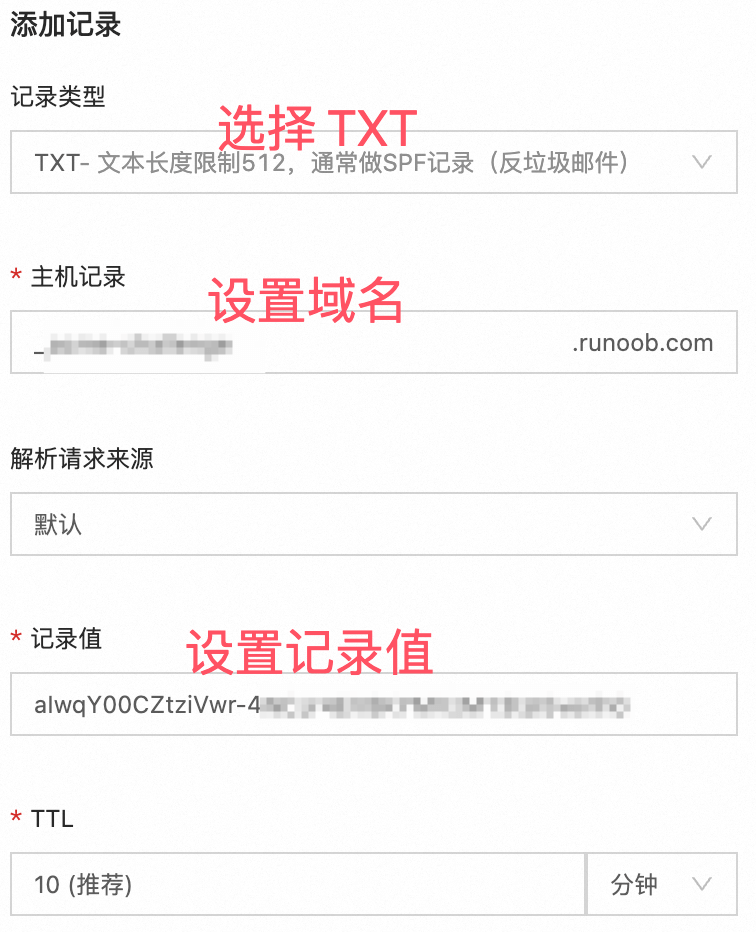
Please deploy a DNS TXT record under the name:

xxxxxxx.example.com. # 这里需要设置域名解析,需要到域名后台填写信息,参考下图

with the following value:

aIwqY00CZtziVwr-xxxxxxxxxxxxxx  # 这里是域名解析的内容,参考下图

Before continuing, verify the TXT record has been deployed. Depending on the DNS
provider, this may take some time, from a few seconds to multiple minutes. You can
check if it has finished deploying with aid of online tools, such as the Google
Admin Toolbox: https://toolbox.googleapps.com/apps/dig/#TXT/_acme-challenge.example.com.
Look for one or more bolded line(s) below the line ';ANSWER'. It should show the
value(s) you've just added.

- - - - - - - - - - - - - - - - - - - - - - - - - - - - - - - - - - - - - - - -
Press Enter to Continue  # 参考下图设置完域名解析后,按回车就可以生成了,记住一定要先解析设置完成后再回车,然后生成的证书信息如下:

Successfully received certificate.
Certificate is saved at: /etc/letsencrypt/live/example.com/fullchain.pem
Key is saved at:         /etc/letsencrypt/live/example.com/privkey.pem
This certificate expires on 2024-12-21.
These files will be updated when the certificate renews.

NEXT STEPS:
- This certificate will not be renewed automatically. Autorenewal of --manual certificates requires the use of an authentication hook script (--manual-auth-hook) but one was not provided. To renew this certificate, repeat this same certbot command before the certificate's expiry date.

- - - - - - - - - - - - - - - - - - - - - - - - - - - - - - - - - - - - - - - -
If you like Certbot, please consider supporting our work by:
 * Donating to ISRG / Let's Encrypt:   https://letsencrypt.org/donate
 * Donating to EFF:                    https://eff.org/donate-le
- - - - - - - - - - - - - - - - - - - - - - - - - - - - - - - - - - - - - - - -
Richten Sie die Domainauflösung ein, um das Zertifikat zu überprüfen:
Die von Let's Encrypt ausgestellten Zertifikate sind 90 Tage gültig. Sie können den folgenden Befehl verwenden, um das Zertifikat zu erneuern:
certbot certonly --force-renewal --manual -d '*.example.com' \
--preferred-challenges dns \
--server https://acme-v02.api.letsencrypt.org/directory
Nach Ausführung des obigen Erneuerungsbefehls werden wir dazu aufgefordert, die DNS-Auflösungseinträge zu aktualisieren:
Saving debug log to /var/log/letsencrypt/letsencrypt.log
Requesting a certificate for *.jysahre.com

- - - - - - - - - - - - - - - - - - - - - - - - - - - - - - - - - - - - - - - -
Please deploy a DNS TXT record under the name:

_acme-challenge.jysahre.com.

with the following value:

ckxo1wGXbP1CtNQ3ZRfvHxxxxxx          # 这里会显示你要更改的 DNS 解析记录值,设置好就可以完成更新了

Before continuing, verify the TXT record has been deployed. Depending on the DNS
provider, this may take some time, from a few seconds to multiple minutes. You can
check if it has finished deploying with aid of online tools, such as the Google
Admin Toolbox: https://toolbox.googleapps.com/apps/dig/#TXT/_acme-challenge.jysahre.com.
Look for one or more bolded line(s) below the line ';ANSWER'. It should show the
value(s) you've just added.

- - - - - - - - - - - - - - - - - - - - - - - - - - - - - - - - - - - - - - - -
Andere Erweiterungen