Demande de certificat SSL gratuit - Certbot
Nous savons que l'utilisation de certificats SSL (Secure Sockets Layer) est très importante pour les sites web et les services en ligne. Les certificats SSL protègent les données contre l'interception ou la falsification en chiffrant la communication entre les utilisateurs et les serveurs.
Dans ce chapitre, nous allons présenter comment utiliser l'outil Certbot pour demander des certificats SSL gratuits.
Qu'est-ce que Certbot ?
Certbot est un outil d'automatisation open source utilisé pour obtenir et renouveler des certificats SSL/TLS gratuits fournis par Let's Encrypt.
Let's Encrypt est une autorité de certification (AC) exploitée par l'Internet Security Research Group (ISRG). Il fournit un processus automatisé pour générer et renouveler des certificats, permettant aux administrateurs de sites web d'activer facilement le chiffrement HTTPS pour leurs sites.
Les principales fonctionnalités de Certbot incluent :
- Automatisation: Il peut vérifier automatiquement la propriété du domaine et demander des certificats.
- Gratuit: Il utilise les certificats gratuits fournis par Let's Encrypt.
- Compatibilité: Prend en charge plusieurs serveurs web, tels qu'Apache, Nginx, etc.
- Facilité d'utilisation: Fournit une interface en ligne de commande, ce qui rend l'installation et l'utilisation simples.
- Renouvellement: Gère automatiquement le renouvellement du certificat, en garantissant que la connexion HTTPS du site Web reste valide à tout moment.
Les certificats émis par Let's Encrypt sont valides pendant 90 jours. Certbot configure automatiquement les tâches de renouvellement des certificats pour garantir que les certificats n'expirent pas.
Installation de Certbot
1. Installer Certbot sur les systèmes Ubuntu/Debian
Installer avec APT :
sudo apt update
sudo apt install certbot
Une fois l'installation terminée, Certbot est prêt à l'emploi.
Installer la version Snap :
Snap est la méthode d'installation officiellement recommandée pour Certbot, en particulier pour les versions Ubuntu à support à long terme.
sudo snap install core
sudo snap refresh core
sudo snap install --classic certbot

sudo ln -s /snap/bin/certbot /usr/bin/certbot  # 这一步是为了确保 certbot 命令能全局使用
2. Installer Certbot sur les systèmes CentOS/RHEL
Installer le dépôt EPEL (pour CentOS 7 et versions antérieures) :
sudo yum install epel-release
sudo yum install certbot
3. Installer Certbot sur macOS
Sur macOS, vous pouvez installer Certbot à l'aide de Homebrew :
brew install certbot
Pour plus de contenu, vous pouvez visiter le site web de Certbothttps://certbot.eff.org/Voir les méthodes d'installation pour chaque plateforme système :
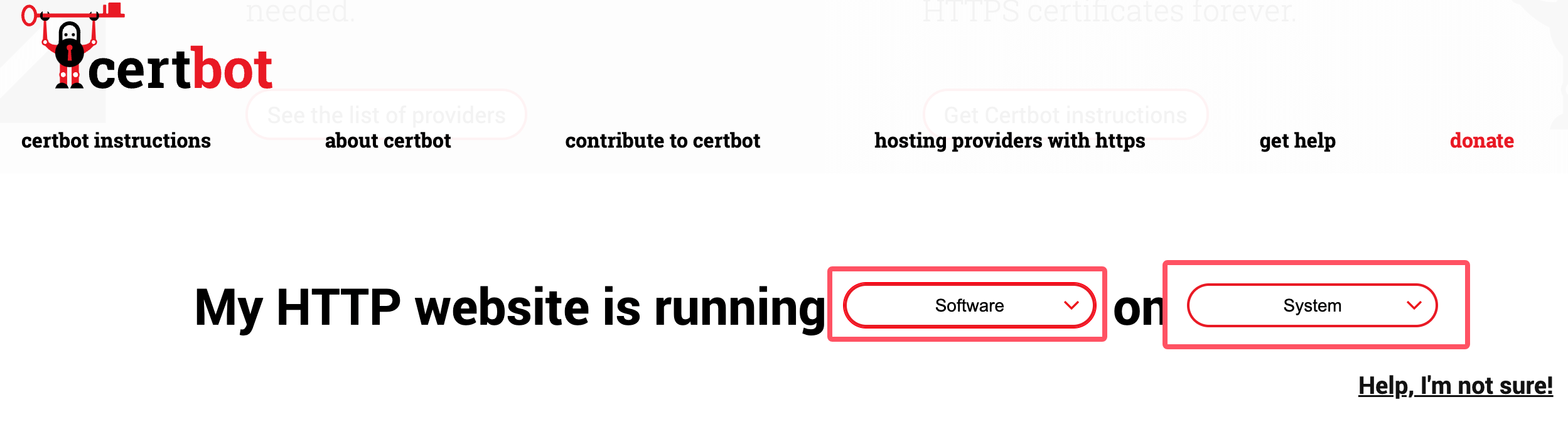
Après l'installation, utilisez la commande suivante pour vérifier la version installée de certbot :
certbot --version
Demande et renouvellement de certificat
Après avoir installé certbot, vous pouvez utiliser la commande suivante pour demander un certificat. Notez que *.example.com doit être remplacé par votre propre domaine :
certbot certonly -d *.example.com --manual --preferred-challenges dns --server https://acme-v02.api.letsencrypt.org/directory
Après avoir exécuté la commande ci-dessus, remplissez les informations :
Saving debug log to /var/log/letsencrypt/letsencrypt.log
Enter email address (used for urgent renewal and security notices)
 (Enter 'c' to cancel): [email protected]. # 这里输入你的邮箱

- - - - - - - - - - - - - - - - - - - - - - - - - - - - - - - - - - - - - - - -
Please read the Terms of Service at
https://letsencrypt.org/documents/LE-SA-v1.4-April-3-2024.pdf. You must agree in
order to register with the ACME server. Do you agree?
- - - - - - - - - - - - - - - - - - - - - - - - - - - - - - - - - - - - - - - -
(Y)es/(N)o: Y    # 输入 Y

- - - - - - - - - - - - - - - - - - - - - - - - - - - - - - - - - - - - - - - -
Would you be willing, once your first certificate is successfully issued, to
share your email address with the Electronic Frontier Foundation, a founding
partner of the Let's Encrypt project and the non-profit organization that
develops Certbot? We'd like to send you email about our work encrypting the web,
EFF news, campaigns, and ways to support digital freedom.
- - - - - - - - - - - - - - - - - - - - - - - - - - - - - - - - - - - - - - - -
(Y)es/(N)o: Y       # 输入 Y

Account registered.
Requesting a certificate for *.example.com

- - - - - - - - - - - - - - - - - - - - - - - - - - - - - - - - - - - - - - - -
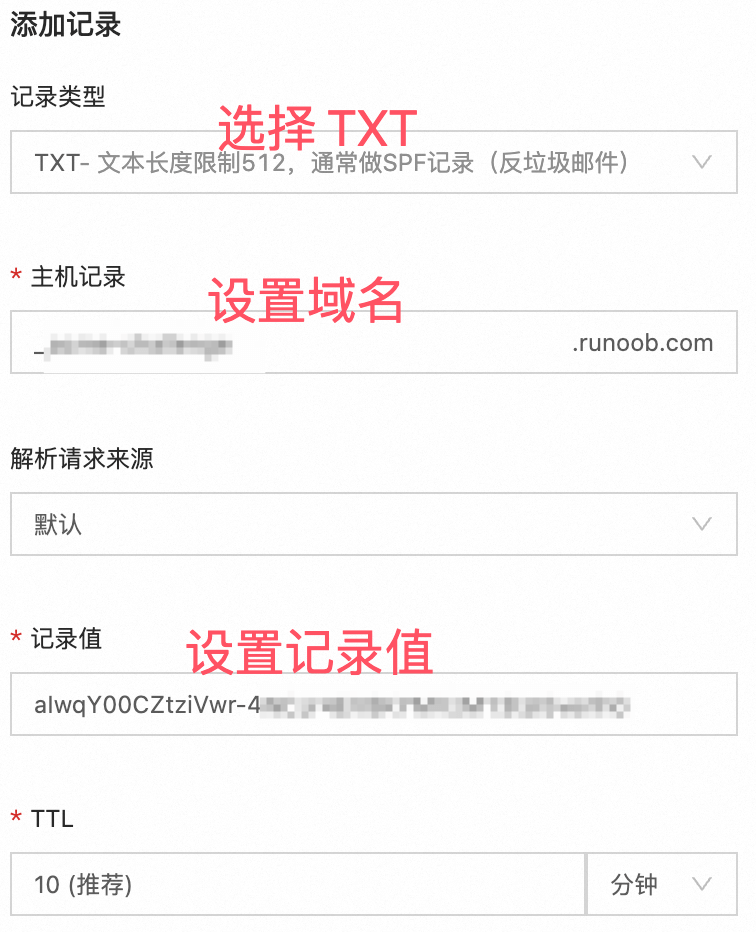
Please deploy a DNS TXT record under the name:

xxxxxxx.example.com. # 这里需要设置域名解析,需要到域名后台填写信息,参考下图

with the following value:

aIwqY00CZtziVwr-xxxxxxxxxxxxxx  # 这里是域名解析的内容,参考下图

Before continuing, verify the TXT record has been deployed. Depending on the DNS
provider, this may take some time, from a few seconds to multiple minutes. You can
check if it has finished deploying with aid of online tools, such as the Google
Admin Toolbox: https://toolbox.googleapps.com/apps/dig/#TXT/_acme-challenge.example.com.
Look for one or more bolded line(s) below the line ';ANSWER'. It should show the
value(s) you've just added.

- - - - - - - - - - - - - - - - - - - - - - - - - - - - - - - - - - - - - - - -
Press Enter to Continue  # 参考下图设置完域名解析后,按回车就可以生成了,记住一定要先解析设置完成后再回车,然后生成的证书信息如下:

Successfully received certificate.
Certificate is saved at: /etc/letsencrypt/live/example.com/fullchain.pem
Key is saved at:         /etc/letsencrypt/live/example.com/privkey.pem
This certificate expires on 2024-12-21.
These files will be updated when the certificate renews.

NEXT STEPS:
- This certificate will not be renewed automatically. Autorenewal of --manual certificates requires the use of an authentication hook script (--manual-auth-hook) but one was not provided. To renew this certificate, repeat this same certbot command before the certificate's expiry date.

- - - - - - - - - - - - - - - - - - - - - - - - - - - - - - - - - - - - - - - -
If you like Certbot, please consider supporting our work by:
 * Donating to ISRG / Let's Encrypt:   https://letsencrypt.org/donate
 * Donating to EFF:                    https://eff.org/donate-le
- - - - - - - - - - - - - - - - - - - - - - - - - - - - - - - - - - - - - - - -
Configurez la résolution de domaine pour vérifier le certificat :
Les certificats émis par Let's Encrypt sont valides pendant 90 jours. Vous pouvez utiliser la commande suivante pour renouveler le certificat :
certbot certonly --force-renewal --manual -d '*.example.com' \
--preferred-challenges dns \
--server https://acme-v02.api.letsencrypt.org/directory
Après avoir exécuté la commande de renouvellement ci-dessus, il nous sera demandé de mettre à jour les enregistrements de résolution DNS :
Saving debug log to /var/log/letsencrypt/letsencrypt.log
Requesting a certificate for *.jysahre.com

- - - - - - - - - - - - - - - - - - - - - - - - - - - - - - - - - - - - - - - -
Please deploy a DNS TXT record under the name:

_acme-challenge.jysahre.com.

with the following value:

ckxo1wGXbP1CtNQ3ZRfvHxxxxxx          # 这里会显示你要更改的 DNS 解析记录值,设置好就可以完成更新了

Before continuing, verify the TXT record has been deployed. Depending on the DNS
provider, this may take some time, from a few seconds to multiple minutes. You can
check if it has finished deploying with aid of online tools, such as the Google
Admin Toolbox: https://toolbox.googleapps.com/apps/dig/#TXT/_acme-challenge.jysahre.com.
Look for one or more bolded line(s) below the line ';ANSWER'. It should show the
value(s) you've just added.

- - - - - - - - - - - - - - - - - - - - - - - - - - - - - - - - - - - - - - - -
Autres extensions