Solicitud de certificado SSL gratuito - Certbot
Sabemos que el uso de certificados SSL (Capa de sockets seguros) es muy importante para los sitios web y los servicios en línea. Los certificados SSL protegen los datos contra escuchas o manipulación mediante el cifrado de la comunicación entre el usuario y el servidor.
En este capítulo presentaremos cómo solicitar certificados SSL gratuitos utilizando la herramienta Certbot.
¿Qué es Certbot?
Certbot es una herramienta automatizada de código abierto utilizada para obtener y renovar certificados SSL/TLS gratuitos proporcionados por Let's Encrypt.
Let's Encrypt es una autoridad de certificación (CA) operada por el Internet Security Research Group (ISRG). Proporciona un proceso automatizado para generar y renovar certificados, lo que permite a los administradores de sitios web habilitar fácilmente el cifrado HTTPS para sus sitios.
Las características principales de Certbot incluyen:
- Automatización: Puede verificar automáticamente la propiedad del dominio y solicitar certificados.
- Gratuito: Utiliza certificados gratuitos proporcionados por Let's Encrypt.
- Compatibilidad: Admite múltiples servidores web, como Apache, Nginx, etc.
- Facilidad de uso: Proporciona una interfaz de línea de comandos, lo que facilita la instalación y el uso.
- Renovación: Maneja automáticamente la renovación de certificados, asegurando que la conexión HTTPS del sitio web permanezca siempre válida.
Los certificados emitidos por Let's Encrypt tienen una validez de 90 días. Certbot configura automáticamente la tarea de renovación de certificados para garantizar que estos no caduquen.
Instalación de Certbot
1. Instalar Certbot en sistemas Ubuntu/Debian
Instalar usando APT:
sudo apt update
sudo apt install certbot
Una vez completada la instalación, Certbot está listo para usarse.
Instalar la versión Snap:
Snap es el método de instalación recomendado oficialmente por Certbot, especialmente para las versiones de Ubuntu con soporte a largo plazo.
sudo snap install core
sudo snap refresh core
sudo snap install --classic certbot

sudo ln -s /snap/bin/certbot /usr/bin/certbot  # 这一步是为了确保 certbot 命令能全局使用
2. Instalar Certbot en sistemas CentOS/RHEL
Instalar el repositorio EPEL (aplicable a CentOS 7 y versiones anteriores):
sudo yum install epel-release
sudo yum install certbot
3. Instalar Certbot en macOS
En macOS se puede instalar Certbot usando Homebrew:
brew install certbot
Podemos ver más contenido en el sitio web de Certbothttps://certbot.eff.org/Consultar los métodos de instalación para cada plataforma del sistema:
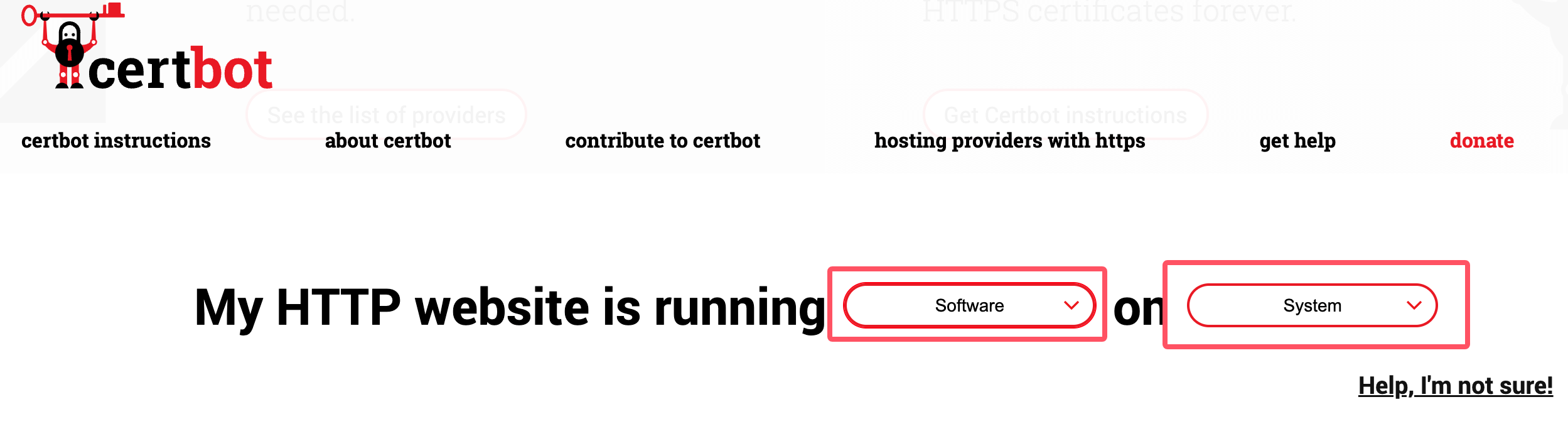
Una vez completada la instalación, usa el siguiente comando para ver la versión instalada de certbot:
certbot --version
Solicitud y renovación de certificados
Después de instalar certbot, puedes usar el siguiente comando para solicitar un certificado. Ten en cuenta que *.example.com debe reemplazarse por tu propio dominio:
certbot certonly -d *.example.com --manual --preferred-challenges dns --server https://acme-v02.api.letsencrypt.org/directory
Después de ejecutar el comando anterior, completa la información:
Saving debug log to /var/log/letsencrypt/letsencrypt.log
Enter email address (used for urgent renewal and security notices)
 (Enter 'c' to cancel): [email protected]. # 这里输入你的邮箱

- - - - - - - - - - - - - - - - - - - - - - - - - - - - - - - - - - - - - - - -
Please read the Terms of Service at
https://letsencrypt.org/documents/LE-SA-v1.4-April-3-2024.pdf. You must agree in
order to register with the ACME server. Do you agree?
- - - - - - - - - - - - - - - - - - - - - - - - - - - - - - - - - - - - - - - -
(Y)es/(N)o: Y    # 输入 Y

- - - - - - - - - - - - - - - - - - - - - - - - - - - - - - - - - - - - - - - -
Would you be willing, once your first certificate is successfully issued, to
share your email address with the Electronic Frontier Foundation, a founding
partner of the Let's Encrypt project and the non-profit organization that
develops Certbot? We'd like to send you email about our work encrypting the web,
EFF news, campaigns, and ways to support digital freedom.
- - - - - - - - - - - - - - - - - - - - - - - - - - - - - - - - - - - - - - - -
(Y)es/(N)o: Y       # 输入 Y

Account registered.
Requesting a certificate for *.example.com

- - - - - - - - - - - - - - - - - - - - - - - - - - - - - - - - - - - - - - - -
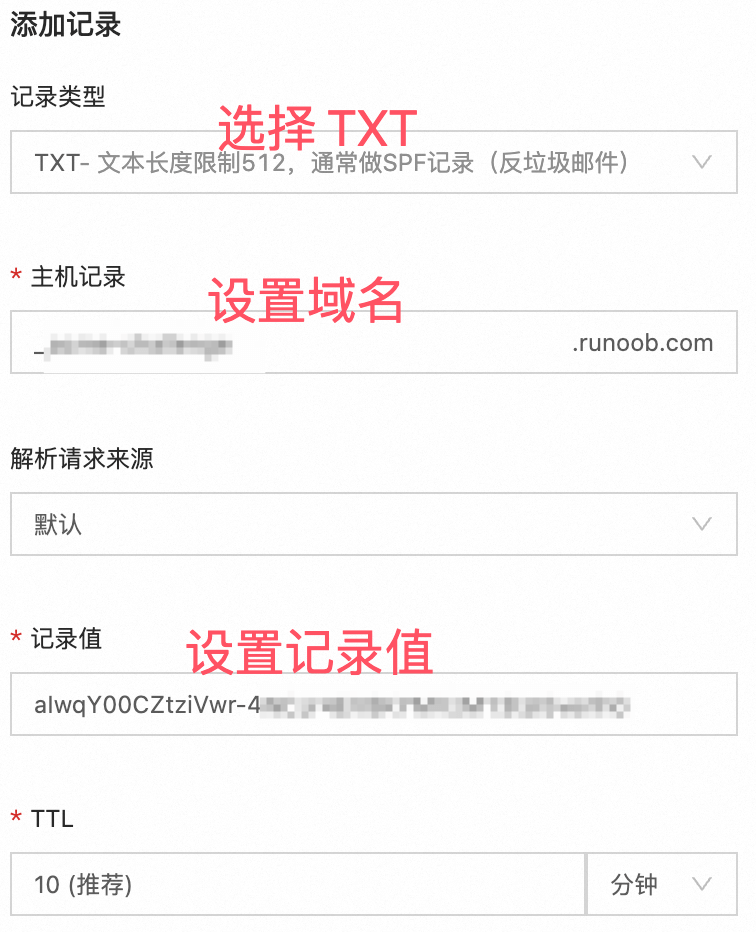
Please deploy a DNS TXT record under the name:

xxxxxxx.example.com. # 这里需要设置域名解析,需要到域名后台填写信息,参考下图

with the following value:

aIwqY00CZtziVwr-xxxxxxxxxxxxxx  # 这里是域名解析的内容,参考下图

Before continuing, verify the TXT record has been deployed. Depending on the DNS
provider, this may take some time, from a few seconds to multiple minutes. You can
check if it has finished deploying with aid of online tools, such as the Google
Admin Toolbox: https://toolbox.googleapps.com/apps/dig/#TXT/_acme-challenge.example.com.
Look for one or more bolded line(s) below the line ';ANSWER'. It should show the
value(s) you've just added.

- - - - - - - - - - - - - - - - - - - - - - - - - - - - - - - - - - - - - - - -
Press Enter to Continue  # 参考下图设置完域名解析后,按回车就可以生成了,记住一定要先解析设置完成后再回车,然后生成的证书信息如下:

Successfully received certificate.
Certificate is saved at: /etc/letsencrypt/live/example.com/fullchain.pem
Key is saved at:         /etc/letsencrypt/live/example.com/privkey.pem
This certificate expires on 2024-12-21.
These files will be updated when the certificate renews.

NEXT STEPS:
- This certificate will not be renewed automatically. Autorenewal of --manual certificates requires the use of an authentication hook script (--manual-auth-hook) but one was not provided. To renew this certificate, repeat this same certbot command before the certificate's expiry date.

- - - - - - - - - - - - - - - - - - - - - - - - - - - - - - - - - - - - - - - -
If you like Certbot, please consider supporting our work by:
 * Donating to ISRG / Let's Encrypt:   https://letsencrypt.org/donate
 * Donating to EFF:                    https://eff.org/donate-le
- - - - - - - - - - - - - - - - - - - - - - - - - - - - - - - - - - - - - - - -
Configurar la resolución del dominio para verificar el certificado:
Los certificados emitidos por Let's Encrypt tienen una validez de 90 días. Puedes usar el siguiente comando para renovar el certificado:
certbot certonly --force-renewal --manual -d '*.example.com' \
--preferred-challenges dns \
--server https://acme-v02.api.letsencrypt.org/directory
Después de ejecutar el comando de renovación anterior, se nos pedirá actualizar el registro de resolución DNS:
Saving debug log to /var/log/letsencrypt/letsencrypt.log
Requesting a certificate for *.jysahre.com

- - - - - - - - - - - - - - - - - - - - - - - - - - - - - - - - - - - - - - - -
Please deploy a DNS TXT record under the name:

_acme-challenge.jysahre.com.

with the following value:

ckxo1wGXbP1CtNQ3ZRfvHxxxxxx          # 这里会显示你要更改的 DNS 解析记录值,设置好就可以完成更新了

Before continuing, verify the TXT record has been deployed. Depending on the DNS
provider, this may take some time, from a few seconds to multiple minutes. You can
check if it has finished deploying with aid of online tools, such as the Google
Admin Toolbox: https://toolbox.googleapps.com/apps/dig/#TXT/_acme-challenge.jysahre.com.
Look for one or more bolded line(s) below the line ';ANSWER'. It should show the
value(s) you've just added.

- - - - - - - - - - - - - - - - - - - - - - - - - - - - - - - - - - - - - - - -
Otras extensiones